

Google’s AI Max enabled campaigns represent a significant shift in how we approach paid search advertising. By leveraging machine learning to automatically expand your reach and optimize performance, these campaigns can deliver impressive results—but only when properly configured and monitored.
Google Search campaigns offer two powerful AI features that can dramatically impact your performance: Text Ad Customization and URL Expansion. When used correctly, these features help Google’s AI match your ads more precisely to user intent. When mismanaged, they can dilute your brand message or send traffic to inappropriate pages.
This guide covers everything you need to know about URL expansion: what it is, when to use it, how to configure it properly, and most importantly—how to exclude the pages that should never receive ad traffic.
Important Context: Used correctly, URL expansion can dramatically improve conversion rates by matching users to exactly the right page. Used carelessly, it can send new prospects to customer-only areas, direct traffic to policy-violating pages, or waste budget on irrelevant content.
Understanding URL Expansion
URL expansion allows Google’s AI to automatically send users to different pages on your website based on their search intent, rather than being limited to the landing page you specify in your ad.
URL expansion is one of AI Max’s most powerful—and potentially problematic—features. Instead of showing only the landing pages you specify, Google’s AI can automatically direct users to different pages on your website based on search intent.
How it works: When you create a Google Search ad, you specify a final URL—the landing page where users should go when they click your ad. Traditionally, every user clicking that ad goes to the exact same page. With URL expansion enabled:
- Google crawls and analyzes your entire website
- When someone searches, Google’s AI determines their intent
- Instead of showing your specified landing page, Google may send them to a different page it believes is more relevant
- This decision happens dynamically for each individual search query
Example:
- Your ad landing page:
yoursite.com/products - User searches: “blue widget user manual”
- Google’s AI finds:
yoursite.com/support/blue-widget-manual - User lands on the manual page instead of the products page, thus resulting in a higher conversion probabaility
The benefit:
- Increased relevance can improve conversion rates when AI correctly matches intent.
- Higher conversion rates – Better match = more likely to convert
- Reduced bounce rates – Relevant pages keep users engaged
- Discover unexpected opportunities – Google may find converting pages you didn’t advertise
The risk:
- Brand experience issues – Users may land on inappropriate pages (customer-only areas, restricted content, or poorly converting pages).
- Loss of control – Google decides landing pages, not you – Users may land on outdated or inappropriate pages
- Customer confusion – New prospects sent to customer-only areas
- Compliance problems – Ads for restricted products/services sent to policy-violating pages
When to Enable URL Expansion
Good scenarios for URL expansion:
- Large e-commerce sites – If you sell hundreds or thousands of products, you can’t create dedicated ads for every SKU.
- Example: You sell 5,000 SKUs but only advertise 50 top sellers
- URL expansion can automatically match searches to the other 4,950 products
- Content-rich websites Businesses with extensive blogs, help centers, or educational resources.
- Example: SaaS company with extensive blog and help center
- Users searching for how-to queries get sent directly to relevant guides
- Service businesses Companies offering many services but only advertising the most popular ones.
- Example: Law firm practicing in 10 areas but advertising only 3
- Searches for other practice areas get sent to appropriate pages
- Sites with strong internal search/filtering – Websites where the best landing page is often a filtered view.
- Example: Job board or real estate site
- Google can send users to pre-filtered results matching their search
- Geographic Businesses with Multiple Locations – Service providers with multiple branches or service areas.
- Example: Company serving 20 cities
- Users see location-specific information immediately
When NOT to Enable URL Expansion
1. Limited Page Variety
Sites with fewer than 20-30 distinct pages gain minimal benefit.
Why it fails: Google has limited options to choose from, so it may pick poorly or default to your specified URL anyway.
2. Customer Portals/Login-Required Areas
Sites where significant sections require authentication.
Why it’s dangerous: New prospects land on “Account Dashboard” or “My Orders” and immediately bounce in confusion.
3. Restricted/Regulated Products
You offer products or services that violate Google Ads policies.
Why it’s risky: URL expansion could inadvertently send ad traffic to CBD, prescription drug, gambling, or adult content pages—triggering account suspension.
4. Poor Site Architecture
Messy URL structures, duplicate content, or inconsistent organization.
Why it fails: Google can’t reliably determine the “right” page if your site structure is chaotic.
How to Enable URL Expansion in Search Campaigns
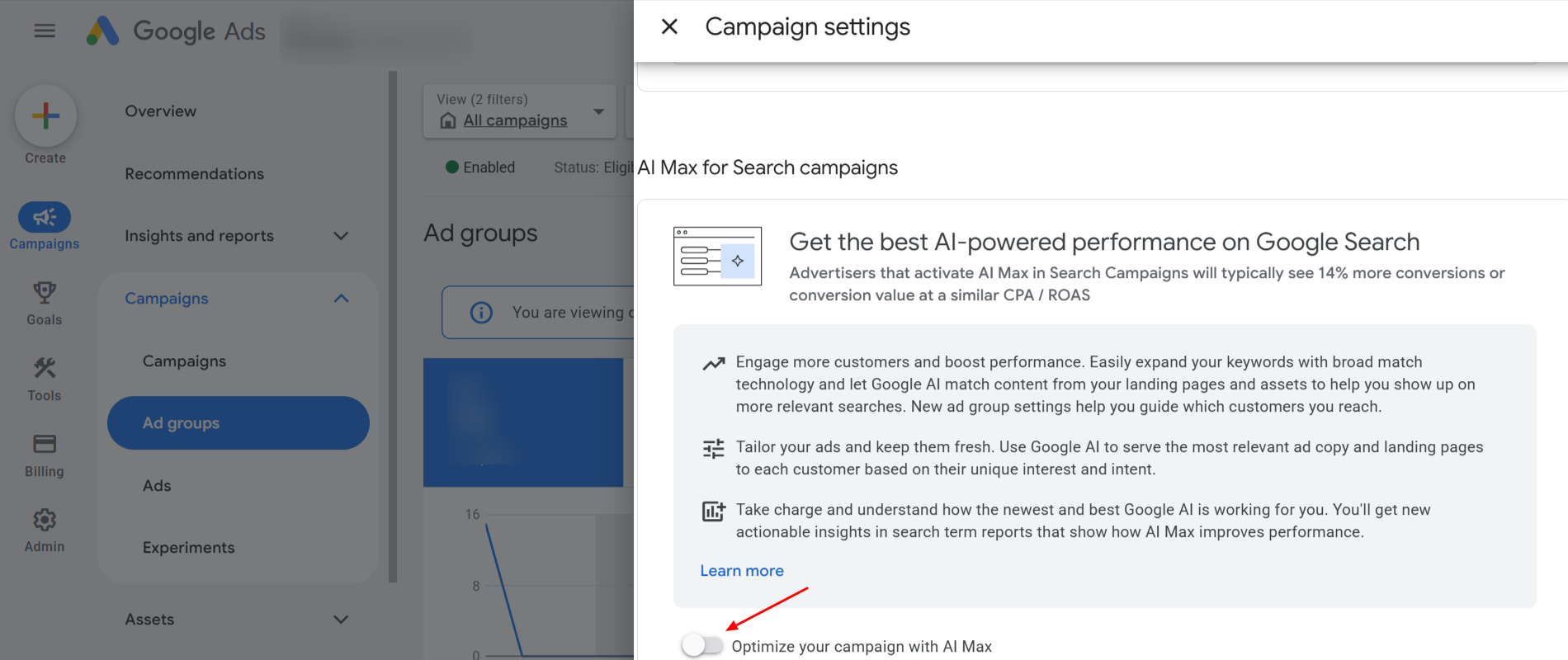
To turn on URL expansion in your Search campaign:
- How to Enable URL Expansion
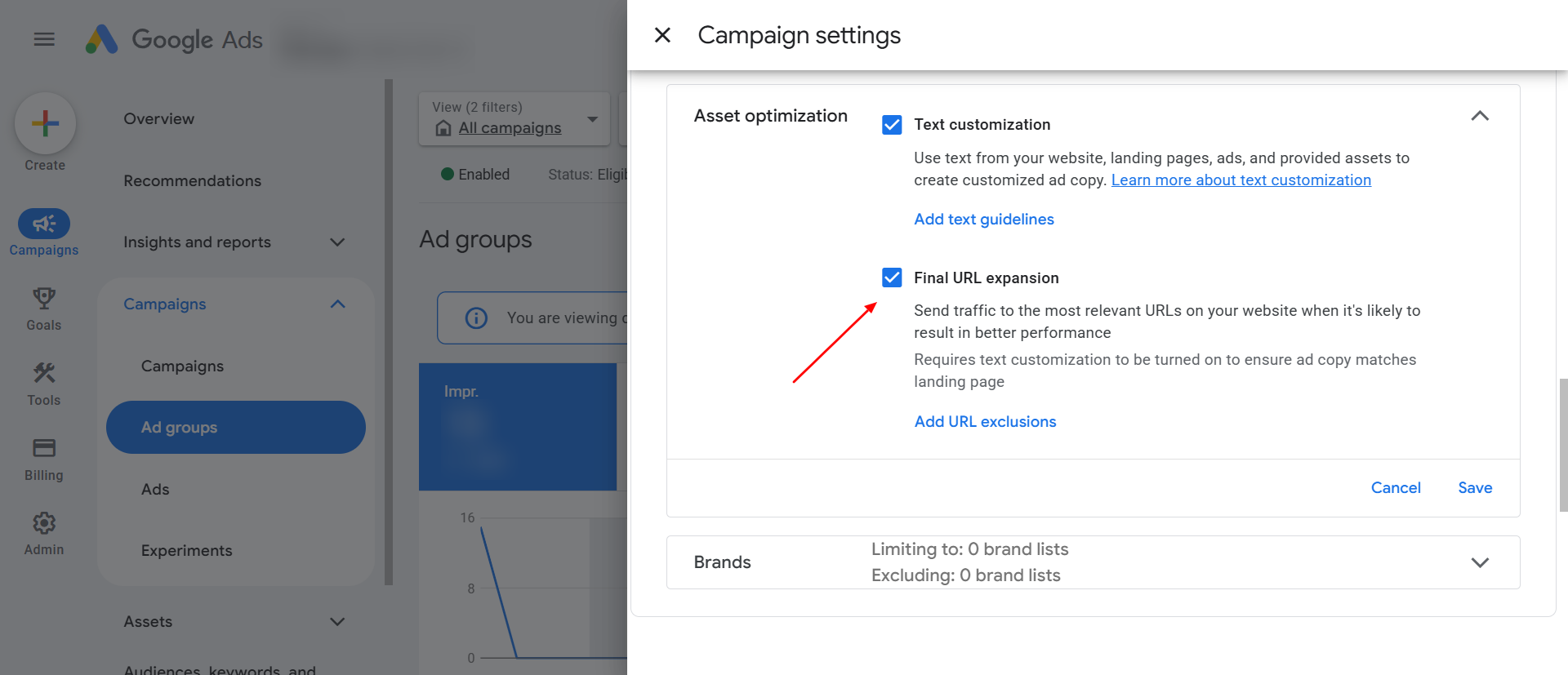
- To enable URL Expansion in a Search campaign:
- Navigate to the campaign settings
- Locate the AI Max for Search section
- Enable the option to optimize the campaign with AI Max
- Turn on Final URL Expansion
URL Inclusion in AI Max enabled Search Campaigns
In Search campaigns with AI Max enabled, URL Expansion allows Google to choose the most relevant landing page from your website. While exclusions prevent traffic from reaching certain pages, URL inclusion provides a way to guide where traffic should go.
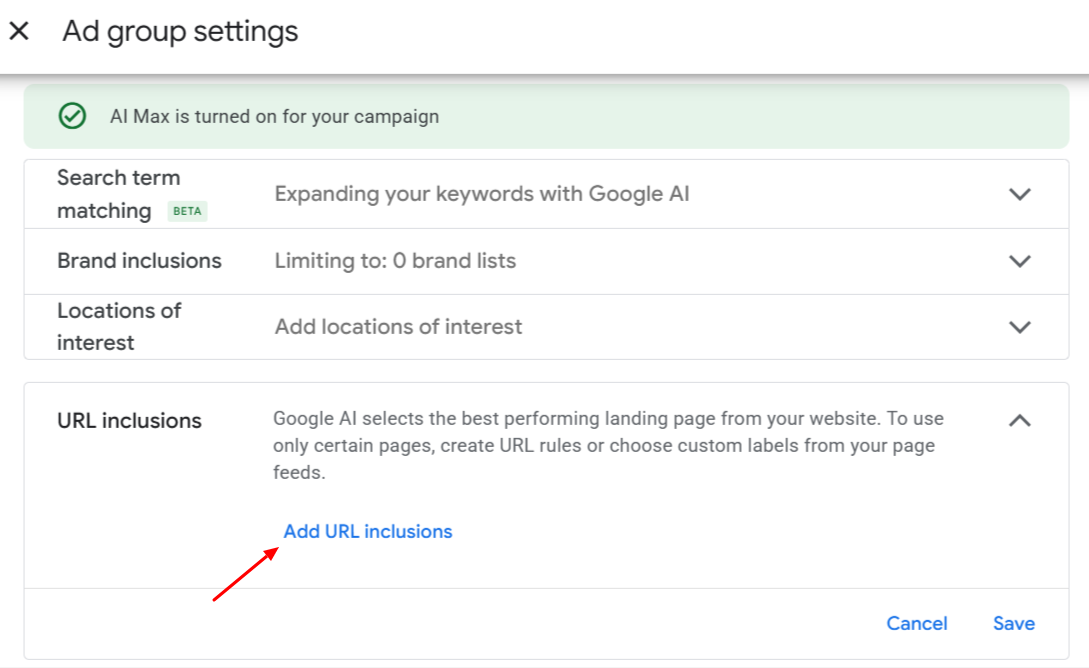
Unlike exclusions, which are configured at the campaign level, URL inclusion is set at the ad group level. This allows you to control landing page selection more precisely within different ad groups.
Where to Find URL Inclusion
To configure URL inclusion:
- Navigate to the specific ad group
- Locate the “URL inclusions” section
- Click “Add URL inclusions”
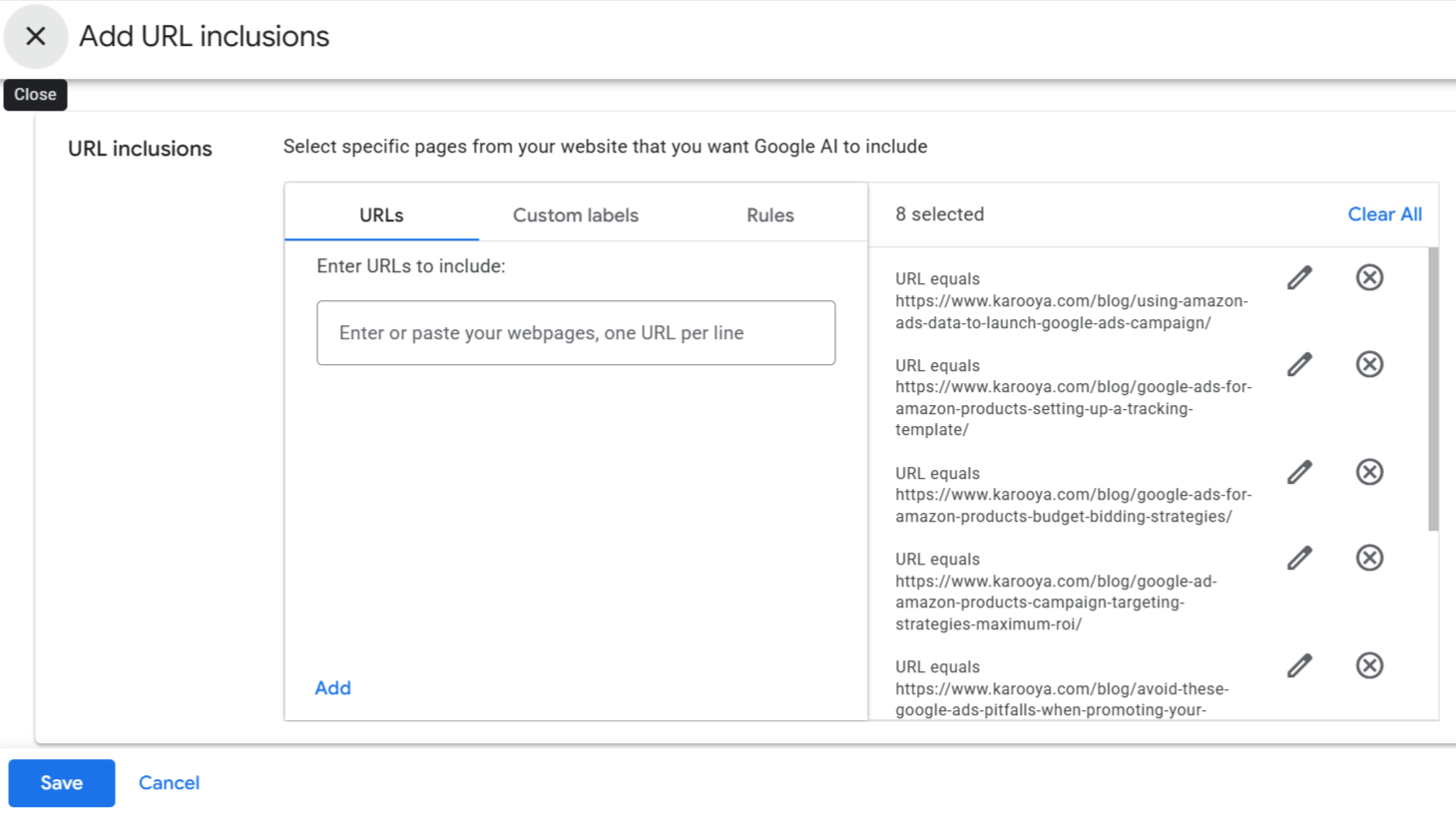
From here, you can define which pages are eligible for URL Expansion within that ad group.
How URL Inclusion Works
By default, when URL Expansion is enabled, Google can select landing pages from your entire website. URL inclusion allows you to restrict this behavior by defining a narrower set of eligible pages. You can do this in two ways:
1. URL Rules
You can specify rules to include only certain sections of your site.
Examples:
- Include URLs containing
/blog/ - Include URLs containing
/amazon-attribution/ - Include URLs containing
/features/
This ensures that Google selects landing pages only from relevant sections instead of the entire domain.
2. Page Feeds
You can also use page feeds to define a specific list of URLs.
With page feeds:
- You upload selected URLs
- Google chooses landing pages only from that list
This is useful when:
- You want tighter control
- Your site has mixed intent
- You are testing a defined set of landing pages
Why URL Inclusion Matters
Without URL inclusion:
- Google considers your entire website
- Even with exclusions, some irrelevant pages may still receive traffic
With URL inclusion:
- You define the eligible set of pages
- You improve alignment between:
- search intent
- ad messaging
- landing page experience
How URL Inclusion and Exclusion Work Together
URL inclusion and exclusion serve different roles:
- URL inclusion (ad group level) defines where Google can send traffic
- URL exclusion (campaign level) defines where Google cannot send traffic
Using both together provides better control than relying on exclusions alone.
Best Practices for Using URL Inclusion
Start with focused sections
Limit URL inclusion to high-quality, relevant sections of your site.
Align with ad group intent
Each ad group should have URL inclusion rules that match its theme or objective.
Avoid overly restrictive setups
If the inclusion set is too narrow, Google may struggle to find relevant pages.
Combine with exclusions
Use exclusions to block risky or irrelevant pages even within included sections.
Updating URL Inclusion After Launch
URL inclusion settings can be modified after the campaign is live.
You can:
- Add new URL rules
- Expand included sections
- Update or replace page feeds
Changes typically take effect within a short period and should be monitored through the landing page report to assess impact.
The Importance of URL Exclusions
URL Expansion should not be used without exclusions. Exclusions act as the primary control mechanism to prevent traffic from reaching inappropriate or low-value pages.
Without exclusions, Google may send users to:
- Customer-only pages
- Policy-sensitive content
- Low-performing or irrelevant pages
This can negatively impact both performance and user experience.
URL Exclusion Strategy
Even with URL expansion enabled, you can (and should) exclude specific pages or site sections. This is your primary control mechanism.
Categories of URLs to Exclude
1. Customer-Only Pages
These pages require login or are designed for existing customers only. New prospects landing here experience confusion and frustration.
Example of URLs to exclude:
/account/
/dashboard/
/my-orders/
/customer-portal/
/subscription-management/
/billing/
/payment-methods/
/order-history/
/wishlist/
/saved-items/
/loyalty-program/
/rewards/
/member-exclusive/
Why: A new prospect clicking your ad and landing on “My Account Dashboard” creates terrible first impression and immediate bounce.
2. Google Restricted Products/Services
If you offer products or services that violate Google Ads policies, exclude those pages to avoid account suspension.
URLs to exclude:
/cbd-products/
/prescription-drugs/
/pharmacy/
/gambling/
/casino/
/tobacco/
/vaping/
/weapons/
/firearms/
/adult-products/
/cryptocurrency-investment/
Why: Even if these products are legal in your jurisdiction, Google Ads prohibits advertising them. URL expansion could inadvertently send traffic to these pages, triggering policy violations.
Important: Check Google Ads Prohibited Content for the current list.
3. Poor-Converting or Irrelevant Pages
Outdated content, archived posts, and informational pages that do not support conversions should be excluded.
Use Google Analytics to identify pages with:
- Bounce rate > 70%
- Average time on page < 30 seconds
- Zero conversions despite receiving traffic
- Outdated or discontinued content
Why: These pages don’t contribute to conversions and waste your ad budget.
4. Administrative/Internal/ Technical Pages
Login pages, admin panels, and error pages should never receive ad traffic.
URLs to exclude:
/admin/
/wp-admin/
/login/
/register/ (unless registration is your conversion goal)
/forgot-password/
/email-preferences/
/unsubscribe/
/sitemap/
Strategic Approach to Using URL Expansion
URL Expansion should be treated as a controlled system rather than a fully automated solution.
Start with a conservative setup:
- Enable the feature
- Apply comprehensive exclusions
- Monitor closely
Gradually expand:
- Allow more sections of the site
- Refine exclusions based on performance
Avoid treating it as a set-and-forget feature. Its effectiveness depends on continuous refinement.
Monitoring URL Expansion Performance
Key Reports to Review
1. Landing Page Report
Access: Campaigns → Landing Pages
Metrics to watch:
- Which pages are receiving traffic from URL expansion
- Bounce rate by landing page
- Conversion rate by landing page
- Cost per conversion by landing page
How to identify URL expansion pages: Compare the Landing Page report to your actual ad final URLs. Pages that appear but aren’t in your ads = URL expansion in action.
2. Custom Report: URL Expansion Analysis
Create a custom report combining:
- Landing page
- Impressions, Clicks, Cost
- Bounce rate (link Google Analytics)
- Conversions, Conversion rate
- Cost per conversion
Filter to show only pages NOT in your ad final URLs.
3. Google Analytics Enhanced Analysis
Setup: Google Analytics → Behavior → Site Content → Landing Pages
Segment: Source / Medium = google / cpc
Add Secondary Dimension: Landing Page
Metrics to compare:
- Bounce Rate
- Pages/Session
- Avg. Session Duration
- Goal Completions
Why GA is better: Shows post-click behavior (time on site, pages viewed) that Google Ads doesn’t track.
Red Flags to Watch For
Immediate Action Required:
- Customer portal pages getting traffic
- Sign:
/account/,/dashboard/,/my-orders/in Landing Page report - Action: Add exclusion immediately
- Sign:
- Restricted product pages getting clicks
- Sign: Policy-violating pages receiving impressions
- Action: Add exclusion, check for policy warnings in account
- High bounce pages burning budget
- Sign: Landing page with bounce rate > 80% and spend > $100
- Action: Add exclusion, redirect traffic to better page
- 404 errors or broken pages
- Sign: Error pages in Landing Page report
- Action: Exclude or fix the page
Monitor Closely:
- Inconsistent conversion performance
- Sign: Same product, different landing pages, wildly different conversion rates
- Action: Identify why, potentially exclude poor performers
- Brand message dilution
- Sign: Landing pages with off-brand content or outdated messaging
- Action: Either update pages or exclude them
Troubleshooting Common Issues
Issue 1: Customer Portal Pages Getting Traffic
Symptoms:
/account/,/dashboard/,/my-orders/in Landing Page report- Bounce rate 90%+
- Zero conversions
- Possibly customer complaints (“Why am I seeing a login page?”)
Root cause: URL exclusions not comprehensive enough
Solution:
Immediate fix:
Add these exclusions: URL contains: /account/ URL contains: /dashboard/ URL contains: /my- URL contains: /customer-portal/ URL contains: /member/
Site audit:
- List EVERY customer-only URL pattern
- Add all to exclusion list proactively
- Don’t wait for them to appear in reports
- Verification:
- Check Landing Page report next day
- Confirm these pages stopped receiving traffic
Issue 2: Restricted Products Getting Clicks
Symptoms:
- Policy warnings in Google Ads account
- Ad disapprovals
- Suspension warnings
- Landing pages for CBD/pharmacy/gambling appearing in reports
Root cause: Advertising products that violate Google Ads policies via URL expansion
Solution:
Full site audit:
- Review Google’s Prohibited Content policy
- Identify EVERY product category that’s restricted
- Add preemptive exclusions
Appeal process (if ads were disapproved):
- Request policy review
- Provide evidence of exclusions
- Explain it was URL expansion, now fixed
Prevention: Before enabling URL expansion, audit for restricted content first.
Issue 3: High Bounce Rate on Legitimate Pages
Symptoms:
- URL expansion sending to relevant pages
- BUT bounce rate is 70-85%
- Pages seem appropriate for the search
Root causes:
- Page has poor design/UX
- Page loads slowly
- Call-to-action isn’t clear
- Content doesn’t match expectations
- Mobile experience is poor
Solution – Decision Tree: Is this page worth fixing?
If YES (valuable content/product):
- Run PageSpeed Insights test
- Improve load time
- Add clear CTA above the fold
- Improve mobile responsiveness
- Add trust signals (reviews, guarantees)
- Re-enable in URL expansion after fixes
If NO (marginal page):
- Add to URL exclusions
- Redirect traffic to better converting page
- Move on
If UNSURE:
- Exclude for 30 days
- Measure campaign performance without it
- If performance improves → keep excluded
- If performance drops → fix the page and re-enable
Issue 5: Exclusions Not Working
Step 1: Check exclusion applied to campaign
- Go to URL Exclusion List
- Click “Campaigns” tab
- Verify your campaign is listed
- Solution: If not, apply the list to the campaign
Step 2: Clear cache
- URL exclusions can take 24 hours to fully propagate
- Check again tomorrow
- Solution: Be patient; re-check in 24-48 hours
Step 3: Check for trailing slashes
You excluded: /customer-portal
Traffic going to: /customer-portal/

Problem: Missing trailing slash
Solution: Change to /customer-portal/ OR use URL Contains
Conclusion
URL expansion is a powerful feature that can significantly improve campaign performance by matching users to the most relevant pages on your website. However, it requires active management through strategic exclusions and consistent monitoring.
The keys to success:
- Exclude comprehensively before enabling – Don’t learn by mistakes
- Monitor religiously for the first month – Daily checks, weekly optimization
- Use “URL Contains” match type for most exclusions – Most reliable
- Start conservative, expand carefully – Easier to open up than damage control
- Document everything – Track what you excluded and why
URL expansion isn’t right for every business. Small sites, highly regulated industries, and businesses prioritizing control over optimization may be better served by manual landing page selection.
But for e-commerce sites with large catalogs, content-rich websites, and businesses willing to invest in proper setup and monitoring—URL expansion can unlock significant performance improvements.
Your next steps:
- Audit your website for pages to exclude
- Create comprehensive exclusion list (use templates in this guide)
- Set up Landing Page reporting dashboard
- Enable URL expansion with all exclusions in place
- Monitor daily for Week 1, then shift to weekly
- Optimize based on actual performance data
Remember: URL expansion is a tool to test, not a mandate. Enable it, measure rigorously, and if it improves your metrics while maintaining brand safety—great. If not, there’s no penalty for keeping it disabled and optimizing manually.
Related Links:

Stop the wasted ad spend. Get more conversions from the same ad budget.
Our customers save over $16 Million per year on Google and Amazon Ads.