

Want to improve your Google Ads campaign performance by filtering out irrelevant searches? Negative keyword lists let you group irrelevant terms and apply them across multiple campaigns. You can organise campaign-specific negatives and apply them quickly, making campaign management easier and more efficient.
The Search Terms report is a good starting point for identifying queries that are irrelevant to your Google Ads campaigns. However, as your account grows, managing exclusions across multiple campaigns can become time-consuming. Some negative keywords need to apply across several campaigns, while others are relevant only to specific campaigns or ad groups. That’s why Google Ads offers different ways to apply negative keywords, making exclusions easier to manage.
| Account-level negative keywords | Ad group-level negative keywords | Campaign-level negative keywords | Shared negative keyword list |
These options let advertisers apply exclusions at the right level, making account management more efficient without unnecessarily blocking relevant traffic.
Shared Negative Keyword Lists vs. Account-Level Negatives: Which Setup Is Right for You?
Google introduced account-level negative keywords in 2023, allowing advertisers to manage exclusions from a single location. With account-level negative keywords, advertisers can exclude irrelevant terms across eligible Search, Shopping, and Performance Max campaigns.
Google Search campaigns already support shared negative keyword lists. However, in August 2025, Google announced an important update extending this functionality to Performance Max campaigns. Previously, advertisers could use negative keywords in Performance Max, but applying the same exclusions across multiple campaigns was less convenient. With shared negative keyword lists, advertisers can now apply the same exclusions to multiple eligible Performance Max campaigns without adding the same keywords individually to each one.
| Key Benefits of Account-Level Negatives | Key Benefits of Shared Negatives |
|---|---|
| Account-level negatives let you apply common exclusions across eligible Search and Shopping campaigns, including Performance Max | Apply shared negative keyword lists only to selected Search or Performance Max campaigns, rather than excluding those terms across the entire eligible account |
| Manage negative keywords in one place instead of updating multiple campaigns individually. This saves time and simplifies ongoing account management | Create separate lists for different purposes—such as brand terms, competitors, or irrelevant searches and assign each list to campaigns where it makes sense |
| The account-level setting enforces a strict limit of 1,000 negative keywords total per account | You can add up to 5,000 negative keywords per list and create up to 20 shared lists per account |
Shared negative keyword lists and account-level negatives both help simplify exclusion management in Google Ads, but they serve different purposes. The right choice depends on whether you need campaign-specific control or consistent exclusions across your account.
How to Create a Shared Negative Keyword List and Apply to Multiple Campaigns?
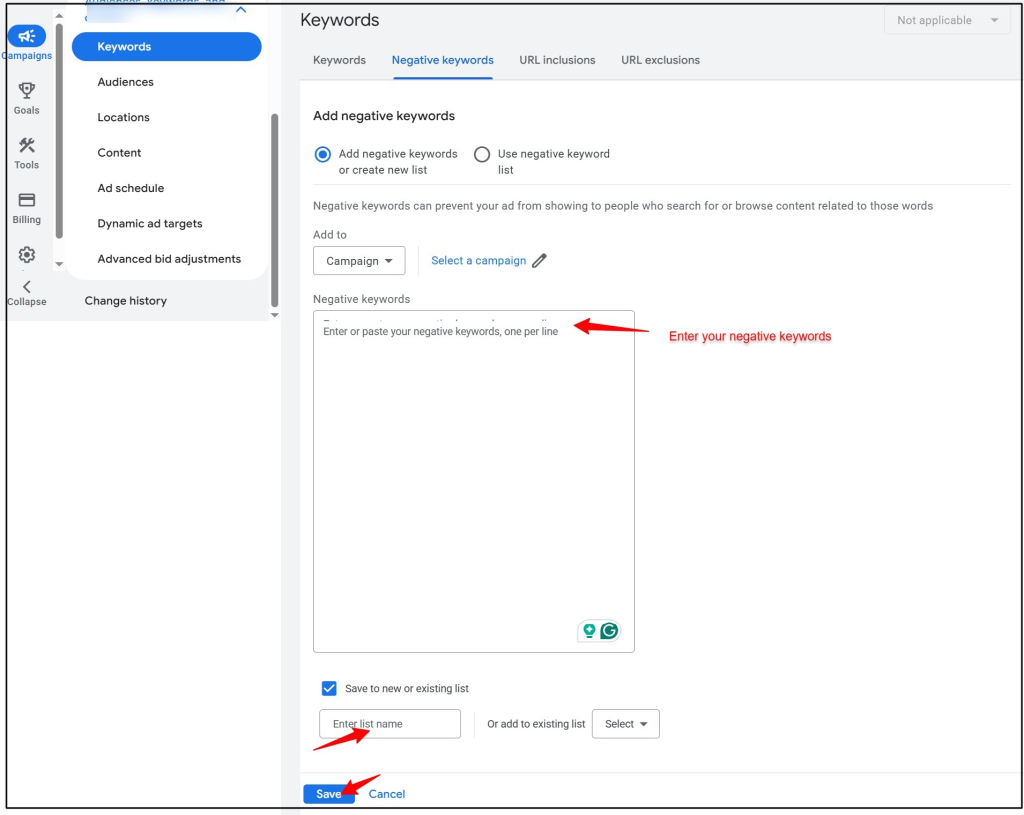
1. Sign in to your Google Ads account. Go to campaign + audiences, keywords, and content + keywords + negative keywords
2. Enter your negative keywords, one keyword per line, by clicking on the + button. Check the box “Save to new or existing list“. Enter the list name and click on Save.
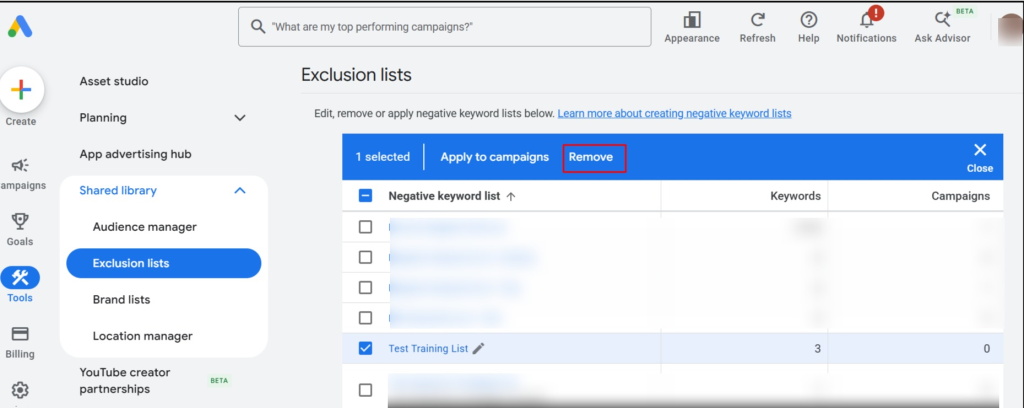
3. To apply the list, go to Tools + Shared Library + Exclusion lists + click on the Negative Keyword List + Apply to Campaign.
However, if you wish to update a negative keyword list, click on the list + click on the “+” sign + add the new negative keyword + save the list. To remove the list, select the list + click Remove, and the list will be removed.
How to Set Up Account-Level Negative Keywords?
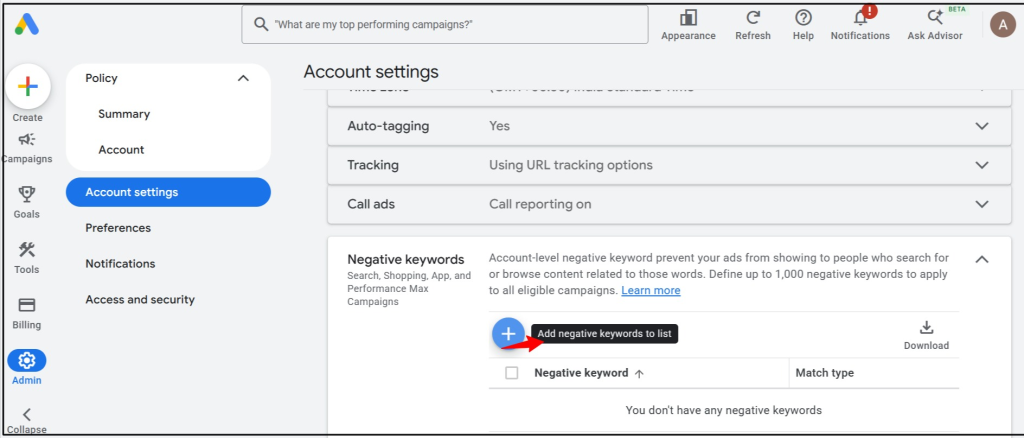
1. Log in to your Google Ads account + Admin icon in the left-hand menu + Account settings + Expand the Negative Keyword section + Click on the + sign + Add Negative Keywords and save them.
How to Create & Apply Campaign and Ad Group Level Negative Keyword Lists?
According to Google, negative keyword lists can be created and applied at the campaign level. However, at the ad group level, negative keywords must be added individually.
Google does not provide the option to apply a shared negative keyword list to an ad group.
To create a campaign-level negative keyword list, you need to follow the same steps as “Shared Negative Keyword List“. However, you can apply an existing list in three ways:
- To a single campaign: Go to Campaigns → Keywords → Negative keywords, click the + sign, select Use negative keyword list, choose the list, and click Save
- To multiple campaigns: Use a shared library. Tools → Shared library → Exclusion lists → Negative keyword lists. Select the list, click Apply to campaigns, choose the campaigns, and confirm
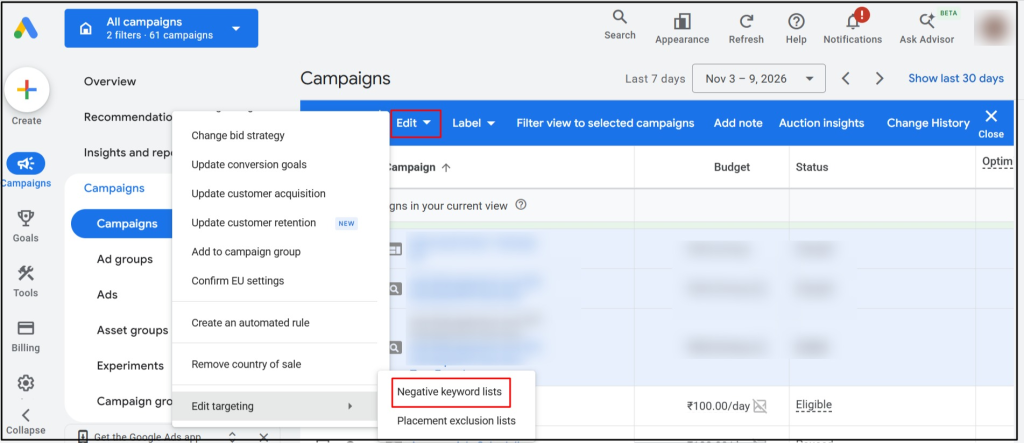
- From the campaign page: Select the campaigns, click Edit → Edit targeting → Add negative keyword lists, select the lists, and click Apply.
How to Audit an Existing Negative Keyword List?
Regular audits are essential to PPC management. They help advertisers assess the health and performance of their Google Ads accounts and identify areas for improvement. Creating a negative keyword list is just a first step. It is important to review the list regularly, adding new exclusions and removing those that are not needed.
Keep this implementation-focused:
1. Lists that are no longer needed
Review your Google Ads account to identify negative keyword lists that are unused, outdated, or no longer relevant to your active campaigns. For example:
- no application to any campaign
- outdated exclusions
- duplicate lists
- blocking relevant traffic
2. Find where your negative keyword list is applied
Identify all the Google Ads campaigns to which each shared negative keyword list is applied. If a list is not being used by any campaign, consider removing it. However, if multiple campaigns use the list, review its impact on those campaigns before removing it.
3. Review negative keywords after restructuring campaigns
PPC professionals need to restructure their Google Ads accounts and campaigns periodically to improve performance and drive more clicks and conversions. This may involve merging campaigns, moving keywords between campaigns, or changing campaign types. However, it is equally important to review your negative keyword lists after restructuring to ensure that the right exclusions are still applied to the right campaigns.
4. Take a good look at your match types
Match types play a crucial role. You might be doing everything right: adding new negatives and removing the irrelevant ones, but forgetting to analyse the match types. That’s where you can lose relevant traffic and increase your wasted ad spend. Usually, the issue is due to broad match types. Taking care of them will help.
Here is the discussion on Reddit which talks about the importance of adding correct negative match types. Some of the suggestions in this discussion are:
“Daily negatives is the tell (imo). You’re not bad at negatives; you’re just fighting broad match by hand, and broad match doesn’t get tired. Move the core keywords to phrase/exact.” andrewhooks
“New bad searches every day is usually a match type issue, so check if your keywords are broad and try phrase or exact match.” eleanor_rigby558
“The fact that you’re adding new negatives every single day and they never stop coming — that’s the tell. You’re not failing at negatives; you’re fighting a losing battle that negatives can’t win. This is almost always a match type problem, not a negative keyword problem.” sharmajika_chotabeta
Frequently Asked Questions: What Else Should You Know?
A. How often should I audit my negative keyword lists?
Google does not provide an official audit schedule, so how often you review negative keyword lists depends on your account’s size and how frequently you make changes. As a general practice, audit these lists monthly. You should also review them after launching new campaigns, enabling AI Max or Performance Max, changing your brand strategy, or noticing a sudden increase in irrelevant search queries.
B. How do I know if a negative keyword is hurting performance?
Look for unexplained drops in impressions, clicks, or conversions after adding a negative keyword. Check whether any search terms that converted in the past 90 days contain that term. Review Change History and check for conflicts with active keywords.
C. Can a shared list be applied to Performance Max?
Yes. Since August 2025, Google Ads has allowed shared negative keyword lists to be applied to Performance Max campaigns, making it easier to manage common exclusions across multiple campaigns.
D. How many campaigns can use one shared list?
Google doesn’t specify the maximum number of campaigns a list can be applied to. However, you can apply a list to up to 1,000 campaigns in a single action. For larger accounts, apply the list in batches.
Related Links



Stop the wasted ad spend. Get more conversions from the same ad budget.
Our customers save over $16 Million per year on Google and Amazon Ads.